We’ve all been there. A tight schedule, back-to-back meetings, and suddenly you find yourself staring at a blank PowerPoint slide, needing to prepare a presentation for an upcoming workshop. You dig through old decks, message colleagues, and search shared folders, hoping to find something—a diagram, a bulleted list, a reference architecture—that you can reuse to get started.
In the corporate world, especially when presenting products or services, the goal isn’t usually to design a masterpiece from scratch. The goal is to not start from zero. It is about efficiency: finding the right existing slide that explains a concept perfectly so you don’t have to redraw it.
This project is a personal exploration into solving that specific problem. Using the recently announced Microsoft Agent Framework, I wanted to build a tool that acts like a research assistant: one that can take a rough topic and assemble a “first draft” deck populated with official, high-quality slides ready for reuse.
The Data Goldmine: Build & Ignite
Every year, Microsoft hosts two massive technical events: Microsoft Build and Microsoft Ignite. For developers and architects, the slides from these events are a goldmine. They contain authoritative explanations, official architecture diagrams, and concise summaries of new capabilities.
The challenge isn’t a lack of content; it’s discoverability. Finding the exact slide that explains “Azure Container Apps scaling” buried inside a 40-slide deck from three months ago is a manual, tedious process.
Phase 1: The Semantic Search Engine
The foundation of this tool is a robust search engine. I utilized python-pptx to ingest over ten thousand publicly accessible slides, extracting text, speaker notes, and metadata.
For retrieval, simple keyword matching wasn’t enough. I opted for the Agentic Retrieval feature within Azure AI Search. This allows the system to understand the semantics behind a query. If I search for “serverless container options,” the system understands that slides discussing “Azure Container Apps” or “Azure Functions” are relevant, even if the exact keyword “serverless” isn’t on the slide.
To make the tool usable for quick discovery, I added:
- Visual Previews: Thumbnails for every slide.
- Event Filtering: Toggles for specific events like Ignite or Build.
- Favorites: A bookmarking system for later download.
This “SlideFinder” was useful, but it was still a manual search tool. I wanted to automate the “hunting and gathering” phase entirely.
Phase 2: The Automated Draft Builder
The vision was simple: Give the AI a rough idea (e.g., “I need a deck about Modernizing Java Apps on Azure”), and have it generate a skeleton deck where 60-80% of the slides are “good enough” to be reused.
The Challenge of “Good Enough”
Finding the “right” slide for a draft is surprisingly hard. A simple search for “Java on Azure” might return a marketing slide, a deep-dive code slide, or a customer case study. If your outline calls for an “Architecture Overview,” a marketing slide is useless.
My first attempts using simple “one-shot” prompts failed. A single query was not sufficient to surface all relevant slides, and linear “author-reviewer” chains often drifted off-topic. The breakthrough came when I adopted a Graph-based Workflow using the Microsoft Agent Framework.
The Slide Discovery Workflow
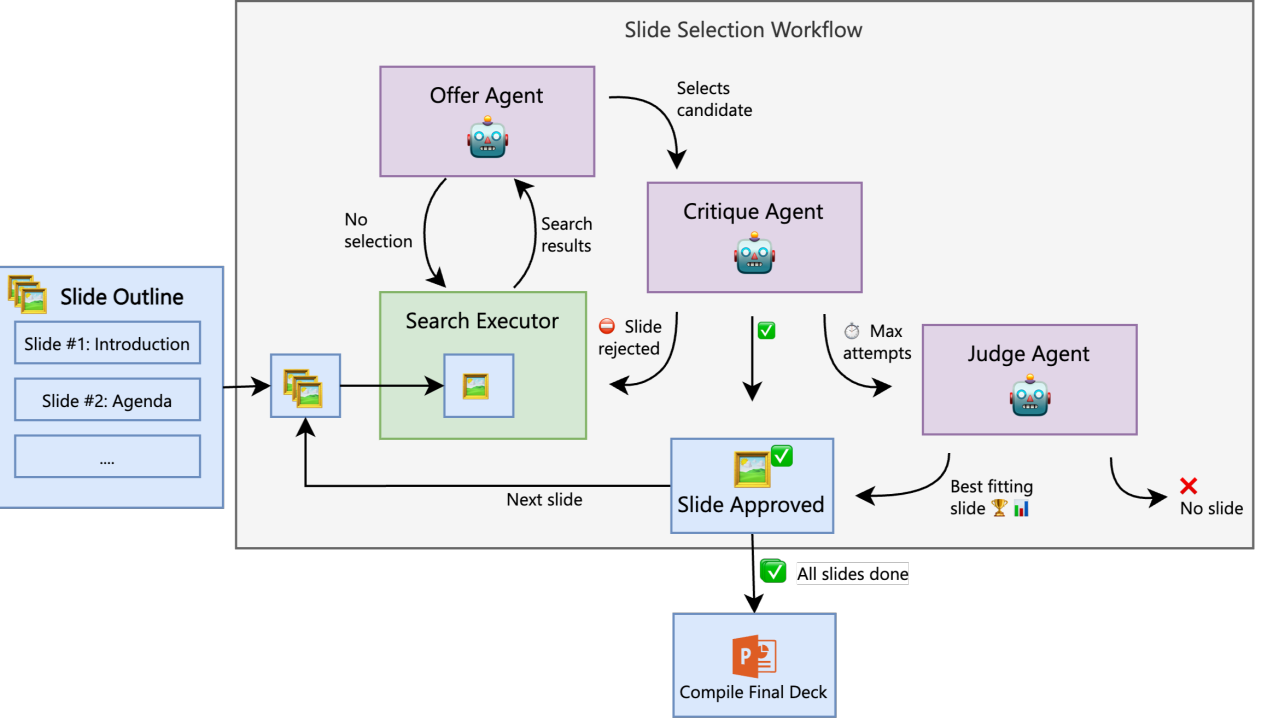
Instead of trying to solve the whole deck at once, I built a workflow that treats every single slide in the outline as its own independent research project. This ensures that finding a great slide for the “Introduction” doesn’t interfere with finding a complex diagram for the “Deep Dive.”
The workflow graph connects four specialized executors:
| Executor | Role |
|---|---|
| Search Executor | Runs a targeted search based on the specific topic of the requested slide |
| Offer Executor | An AI agent reviews the top search results and “offers” the best candidate |
| Critique Executor | The quality gate. It checks if the slide fits the context |
| Judge Executor | The final arbiter. If the system loops too many times (e.g., 15 attempts), the Judge steps in to pick the “least bad” option |
Here is how the workflow is defined in code:
builder = WorkflowBuilder()

# Define the transitions between states
builder.add_edge(search, offer, condition=lambda s: s.phase == WorkflowPhase.OFFER)
builder.add_edge(offer, critique, condition=lambda s: s.phase == WorkflowPhase.CRITIQUE)
builder.add_edge(offer, judge, condition=lambda s: s.phase == WorkflowPhase.JUDGE)

# Loops for retrying search if the slide is rejected
builder.add_edge(offer, search, condition=lambda s: s.phase == WorkflowPhase.SEARCH)
builder.add_edge(critique, search, condition=lambda s: s.phase == WorkflowPhase.SEARCH)
builder.add_edge(critique, judge, condition=lambda s: s.phase == WorkflowPhase.JUDGE)

builder.set_start_executor(search)
builder.set_max_iterations(MAX_WORKFLOW_ITERATIONS)
Seeing it in Action
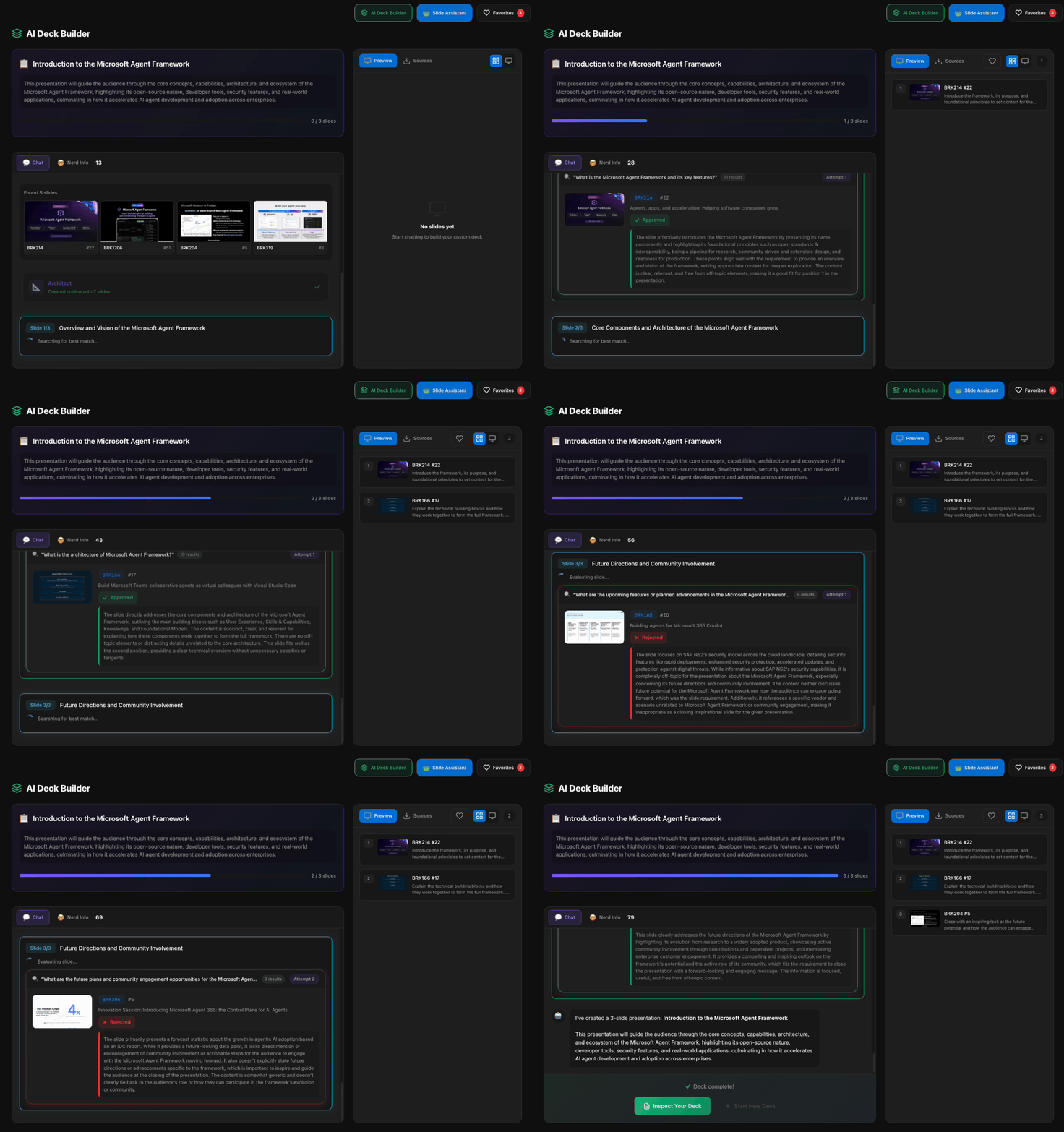
When the workflow runs, you can see the agents “thinking”—searching, offering a candidate, getting rejected by the critic, and searching again with a refined query.
Technical Deep Dive: The Executors
In the Microsoft Agent Framework, an Executor is a fundamental building block of a workflow. Think of it as a node in a graph. An Executor encapsulates a specific unit of work—whether that’s calling an AI agent, running a search query, or executing code.
Executors are powerful because they maintain state. They receive the current state of the workflow, perform their task, and then decide where to go next.
The Critique Executor
The CritiqueExecutor is the most critical part of the quality control. It uses a multimodal AI agent (text + vision) to look at a slide thumbnail and decide if it actually fits the presentation outline.
Here is a simplified snippet of the implementation:
@handler
async def handle(self, state, ctx):
    # 1) Identify the slide chosen by the "Offer" agent
    slide = state.current_selection["slide_data"]

    # 2) Critique with text + image context
    prompt = self._build_critique_prompt(state, slide)

    # We send both the prompt and the slide image to the model
    msg = multimodal_msg(prompt, [slide], include_images=True)

    critique = (await self._critique_agent.run([msg],
        response_format=CritiqueResult)).value

    # 3) Approve or loop back to search
    if critique.approved:
        await self._handle_approval(state, slide, ctx)
    else:
        # If rejected, the workflow loops back to search
        await self._handle_rejection(state, slide, critique, ctx)
Generating the Skeleton
Before searching for slides, the system needs a plan. This is handled by an “Outliner” Agent which generates a structured JSON object containing:
- Narrative Arc: A brief flow of the presentation.
- Slide List: A list of 5-10 topics needed to tell that story.
- Search Hints: Specific queries for each slide (e.g., “Java Spring Boot architecture diagram Azure”) to guide the initial search.
To keep the process cost-effective and fast, I utilized a combination of mini and nano models from the GPT family for the majority of the agents (Search, Offer, Judge). This approach provided the best balance of speed and reasoning.
Conclusion
The result is rarely a presentation I would give immediately. The styles might vary, and the flow might need tweaking. But it is no longer a blank canvas. You have a deck with 8 solid slides, correct diagrams, and official bullet points. You can delete the ones that don’t fit, smooth out the transitions, and you’re done in a fraction of the time.
This project shows how the Microsoft Agent Framework can be applied to automate complex, multi-step research workflows. By first generating a clear plan and then running a focused search and critique loop for each individual element, it becomes possible to build systems that meaningfully speed up everyday work.
SlideFinder does not replace the presenter. It takes care of the repetitive task of finding the right content, so you can spend your time shaping the narrative.
Get the Code
If you are interested in how this is implemented, the full source code is available on GitHub. Exploring the repository is a practical way to understand how the Microsoft Agent Framework can be used in real applications.
GitHub Repository: https://github.com/aymenfurter/slidefinder
Disclaimer
SlideFinder is a personal project built to explore the capabilities of the Microsoft Agent Framework. It is not an official Microsoft product, feature, or roadmap item, and is not supported by Microsoft. The project is open-source for educational purposes. All slide content used in this demo is sourced from publicly available Microsoft Build and Microsoft Ignite materials; I do not own this content, and all rights remain with their respective owners. This tool is intended solely for demonstration and learning.
